ArcXP PowerUp
We support embedding Tickaroo liveblogs into your ArcXP CMS using a custom powerup. The following document will provide documentation for how to install and use this so-called PowerUp.
Download
You can download the current version of the PowerUp from our public GitHub repository.
Installation
Please follow these steps to install the PowerUp into your ArcXP installation:
- Donwload and extract the .zip-file containing the necessary files
- Copy the “TickarooLiveblogPowerUp” folder (and its contents) from
components/featuresto yourcomponents/featuresfolder - Copy the “tickaroo-liveblog.js” file from
content/sourcesto yourcontent/sourcesfolder - Open
environment/index.jsonand copy the configuration from there to your active environment (most likelyenvironment/index.jsonin your installation). You will need to enter your ownclient_idandthemeIds there, as well as select whether to use SEO prefetch. See more under “Configuration”. - If you have not already done that, eject the
article-body-block(see the ArcXP documentation). - Copy “TickarooLiveblog.jsx” from
components/chains/article-body/_childreninto the_childrenfolder of the ejected article body chain. -
Add the custom embed into the
default.jsxof the ejected article body chain like this (compare tocomponents/chains/article-body/default.jsxfrom the downloaded PowerUp):switch (type) { case 'custom_embed': switch (item.subtype) { case 'Tickaroo Liveblog': return <TickarooLiveblog key={`${type}_${index}_${key}`} embed={item.embed} />; default: return null; }Merge the snippet into your own ejected chain — don't replace the file wholesale. The article-body chain relies on the imports and constant below at the top of the file. If your ejecteddefault.jsxis missing any of them, add them (compare againstcomponents/chains/article-body/default.jsxfrom the downloaded PowerUp).import { useFusionContext } from 'fusion:context'; import { isServerSide } from 'fusion:environment'; import { LazyLoad, usePhrases } from '@wpmedia/arc-themes-components'; const BLOCK_CLASS_NAME = 'b-article-body'; -
Copy
powerup.jsxfromcomponents/output-typesto yourcomponents/output-typesfolder (or verify that apowerupoutput type already exists). ArcXP renders PowerUp blocks in an iframe using thepowerupoutput type — without it the liveblog block cannot render. - Bundle your installation (run
npx fusion zip) and deploy it (PageBuilder Editor > Developer Tools > Deployer).
Set-Up
Now, all the necessary data is uploaded to your running ArcXP configuration. Please follow the provided steps to set up the PowerUp for your usage in the CMS:
- In the PagerBuilder Editor under Pages, create a new page to host the PowerUp. Make sure to note down the URI. The following steps will use
tickaroo-liveblogas the URI. - Open the newly created page. Under Curate > Blocks add the
TickarooLiveblogPowerUppowerup. Share and publish the changes. -
Switch to Composer. Under Settings > Content elements click “Add custom embed”. Create a new custom embed using the following configuration:
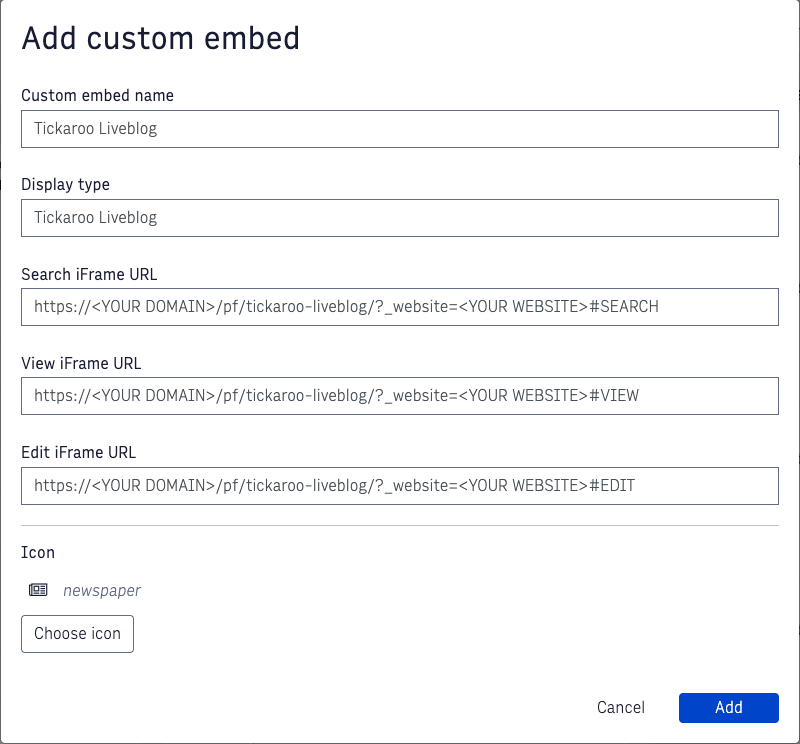
Be careful to insert your own domain and website name. Replace
tickaroo-liveblogwith whatever URI you chose in step 1. The Custom embed name and Display type need to be the same!
Usage
Now that the PowerUp is finally set up, you can add it to your stories!
- Open a story you want to add a liveblog to. Click “Add content” and select the “Tickaroo Liveblog” content.
- A configuration form opens now. Paste the ID of your liveblog (see “Configuration”) into the form and select a theme. Click submit.
- A preview is now visible in the CMS. In the draft preview (and the finished, published story) the whole liveblog is visible!
(You might need to make sure that the new article-body-chain is used in the relevant templates.)
Liveblog Teaser
Besides the full liveblog, you can also embed a Liveblog Teaser — a compact, static preview card that links readers to the full liveblog. The teaser is a separate content type (“Tickaroo Liveblog Teaser”) that installs alongside the liveblog PowerUp and reuses the same client_id and themes.
Installation (in addition to the steps above)
- Copy the “TickarooLiveblogTeaserPowerUp” folder (and its contents) from
components/featuresto yourcomponents/featuresfolder. - Copy the “tickaroo-liveblog-teaser.js” file from
content/sourcesto yourcontent/sourcesfolder. - Copy “TickarooLiveblogTeaser.jsx” from
components/chains/article-body/_childreninto the_childrenfolder of your ejected article body chain. -
Add a second
caseto thedefault.jsxswitch of the ejected article body chain, next to the existingTickaroo Liveblogcase (compare tocomponents/chains/article-body/default.jsxfrom the downloaded PowerUp):switch (item.subtype) { case 'Tickaroo Liveblog': return <TickarooLiveblog key={`${type}_${index}_${key}`} embed={item.embed} />; case 'Tickaroo Liveblog Teaser': return <TickarooLiveblogTeaser key={`${type}_${index}_${key}`} embed={item.embed} />; default: return null; }Also add the import at the top of the file:
import TickarooLiveblogTeaser from './_children/TickarooLiveblogTeaser'; - Re-bundle (
npx fusion zip) and deploy as in the main installation. The teaser reuses the samepowerupoutput type — no extra output type is needed.
Set-Up
Repeat the Set-Up steps for a second custom embed dedicated to the teaser:
- Create another page (for example with the URI
tickaroo-liveblog-teaser) and, under Curate > Blocks, add theTickarooLiveblogTeaserPowerUppowerup. Share and publish. - In Composer, add a second custom embed named Tickaroo Liveblog Teaser pointing at that page. As before, the Custom embed name and Display type must match — and the name must be exactly
Tickaroo Liveblog Teaserso it matches thecaseindefault.jsx.
Usage
Add the teaser to a story via “Add content” → Tickaroo Liveblog Teaser. Paste the liveblog ID and select a theme, exactly like the full liveblog. Optionally set a Link URL (see “Linking” below). SEO prefetch (TIK_USE_SEO) works for the teaser too — since the teaser is a static snapshot, prefetching is especially effective.
Linking
The teaser links to the full liveblog. To set that link explicitly, fill in the optional Link URL field in the teaser configuration form — it is passed to the widget as liveblogUrl. See Liveblog Teaser Linking for details.
If you leave Link URL empty, the teaser resolves the link automatically from liveblog analytics data, looking for a URL on the site the teaser is embedded on, and falls back to the liveblog’s own canonical URL. If neither is available — a brand-new liveblog on a site with no analytics data yet, and no canonical URL — the teaser renders without a link.
Both work with TIK_USE_SEO on or off. With SEO prefetch enabled the link is resolved on the server, which needs to know the site’s own address: it is taken from the ArcXP site properties (siteUrl, otherwise websiteDomain), or from TIK_SITE_ORIGIN if those carry no URL. Without either the automatic lookup is skipped and only the canonical URL remains.
Link URL accepts an absolute http(s) URL or a path on your own site (/sports/live). Anything else — another scheme, or a path that resolves to a different host — is ignored, and the teaser falls back to automatic resolution.
Configuration
You will need to set a view options in the environment file and the content configuration. Here will be a short explanation on where to find and and what they mean.
TIK_CLIENT_IDID of the API Client to use. Can be found in Pro settings.TIK_USE_SEOBoolean indicating whether to use SEO prefetch.TIK_SITE_ORIGIN(optional) Your site’s own address, e.g.https://www.example.com. Only used withTIK_USE_SEOenabled, and only as a fallback: the teaser prefers the ArcXP site properties (siteUrl, otherwisewebsiteDomain), which are per-site and therefore correct when one bundle serves several sites. Set this only if those carry no URL. Without it, automatic teaser linking falls back to the liveblog’s canonical URL. See “Liveblog Teaser → Linking”.TIK_THEMES.idID of the theme to use. Create themes in pro (Settings -> Widgets) to preconfigure display options and colors.TIK_THEMES.nameThe name of the theme that will be displayed during content configuration.liveblogIdID of the Liveblog to Embed. Can be found in Pro.liveblogUrl(Liveblog Teaser only, optional) Link target for the teaser — an absolutehttp(s)URL, or a path on your own site. Leave empty to let the teaser resolve the link itself, from analytics data or the liveblog’s canonical URL — see “Liveblog Teaser → Linking” for which one wins when.
Where to find these values in Tickaroo Pro
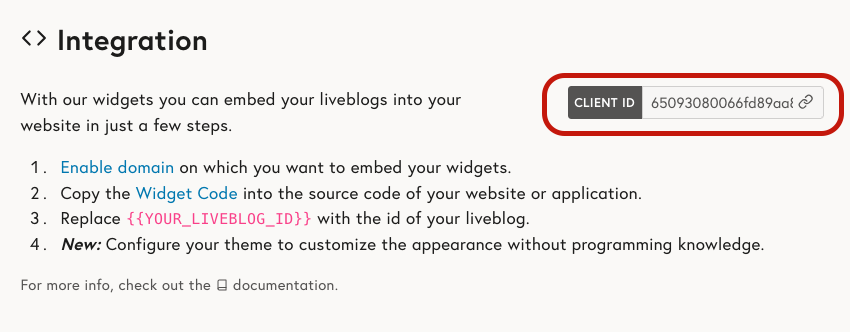
Client ID (TIK_CLIENT_ID) — open Pro → Settings → Integration. The Client ID is shown as a badge in the top right of the page.
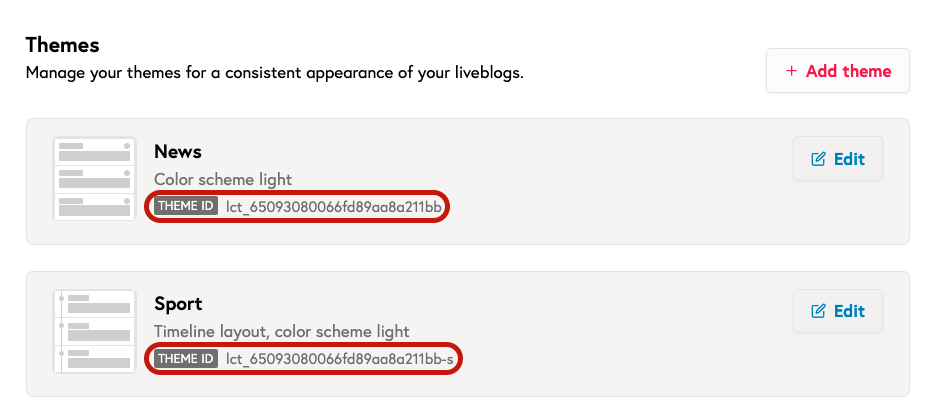
Theme ID and Name (TIK_THEMES.id / TIK_THEMES.name) — in Pro → Settings → Integration open Themes → Edit themes. Each theme shows its Theme ID as a badge; the theme name is the one you set here and the one you reference in TIK_THEMES.name.
Liveblog ID (liveblogId) — open the liveblog in Pro and copy its ID from here. Reporters paste this ID into the content configuration form (see “Usage”).

SEO prefetch will cause the ArcXP system to fetch HTML code from the Tickaroo backend and insert it into the webpage before delivering it to the user. This can improve load times and optimizes search engine visibility. More information can be found here.
Troubleshooting
403 — Permission required
If the liveblog fails to load and you see an error like:
Check if you have the necessary rights for this liveblog and if you used the correct client_id and id (embed_id)
the request was rejected with a 403 by the Tickaroo backend. Common causes:
- Wrong
TIK_CLIENT_ID— theclient_idin your environment file doesn’t match the API Client that owns the liveblog. Verify it under Pro → Settings → Integration (see “Configuration”). - Wrong liveblog ID — the
id(embed_id) passed for the block points to a liveblog the client can’t access, or has a typo. Copy it again from Pro (see “Configuration”). - Request origin not in your Enabled domains — the domain the story is served from isn’t allow-listed, so the embed refuses to run. See the Enabled domains note above and add the serving domain under Settings → Integration → Enabled domains.
- Server Side Fetch not enabled — only when
TIK_USE_SEOistrue. Prefetching is a paid add-on and not part of the default Live Blog plan; without it the prefetch endpoint answers 403 regardless of client ID and domains. Contact support to enable it, or setTIK_USE_SEOtofalse.
Liveblog Teaser renders nothing
If a teaser block stays empty:
- Missing
powerupoutput type — the teaser renders in an iframe using the sharedpowerupoutput type (the same one the full liveblog uses). Make sure it exists (see Installation step 8). - Custom embed not registered / wrong name — the teaser only renders when the “Tickaroo Liveblog Teaser” custom embed is registered and its name matches the
case 'Tickaroo Liveblog Teaser'indefault.jsxexactly. - 403 — Permission required — same causes as above (wrong
TIK_CLIENT_ID, wrong liveblog ID, or origin not in your Enabled domains), plus one that is specific to prefetching: withTIK_USE_SEOenabled, the teaser prefetch uses the Server Side Fetch API, which is not part of the default Live Blog plan. Without that add-on the endpoint answers 403 no matter how the client ID and domains are configured — contact support to enable it, or setTIK_USE_SEOtofalseto render the teaser client-side. See Liveblog Teaser SEO Prefetch.
Liveblog Teaser has no link
A teaser ends up without any link only when two things are true at once: the liveblog has no canonical URL to fall back on, and automatic resolution found nothing either. For the second half there are two reasons:
- No analytics data yet for that liveblog on this site — normal for a brand-new liveblog.
TIK_USE_SEOis on and the site’s address is unknown — the server-side lookup needs it. Check that the ArcXP site properties carrysiteUrl(orwebsiteDomain), or setTIK_SITE_ORIGIN.
So if the liveblog does have a canonical URL, an unknown site address will not leave the teaser unlinked — it will link to the canonical URL, and changing site properties or TIK_SITE_ORIGIN is not what you need.
Separately, if the teaser links somewhere other than what you configured, check the Link URL value: only an absolute http(s) URL or a path on your own site is used. Anything else is ignored on purpose — a typo like example.com/live (no scheme) behaves as if the field were empty, so the teaser falls back to automatic resolution instead. Setting a valid target links explicitly and skips resolution entirely — see “Liveblog Teaser → Linking”.