CUE DAM Integration
Connect your CUE Digital Asset Management system by Stibo DX to the Tickaroo Liveblog Editor. Editors can then drag images from CUE straight into a liveblog message, and the image title and credit come along from CUE. Optionally, editors can also search CUE from inside the editor.
How it works
When an editor drops an image from CUE into a message, Tickaroo’s servers look the image up through your CUE DAM API (DC-X) with the API user you configure, then download the original file and store it in Tickaroo. Your editors’ browsers never talk to the DAM API. As a result:
- you don’t need to configure any CORS headers for Tickaroo
- your DAM API and its image files must be reachable from Tickaroo’s servers (see Network access)
Setup takes three steps:
- Request an API user from your CUE administrator.
- Enable and configure the integration in Tickaroo.
- Test it in the editor.
Before you start
- Your Tickaroo plan must include DAM integrations. If the CUE DAM card in the settings shows a lock icon and can’t be opened, contact Tickaroo Support to enable it.
- You need the admin role in Tickaroo to open Settings → External Integrations.
- You need a contact who administers your CUE installation, either in your company or at Stibo DX.
Step 1: Request API access
Ask your CUE administrator for the following. You can forward this list as it is:
- A dedicated API user for Tickaroo, with a username and password (HTTP Basic authentication). We recommend a separate service user instead of a personal account, so the integration keeps working when people leave.
- Read access for this user to the images your editors should use: the image documents and their original files.
- Only if editors should search CUE from the editor: read access to the channels to search, and the IDs of those channels.
- The base URL of your DC-X API, for example
https://dam.example.cue.cloud/dcx/. - Access from Tickaroo’s servers to the API and to the image files (see Network access).
Your CUE administrator can check the new API user with the requests under Debugging before handing over the credentials.
Network access
Tickaroo’s servers call your DC-X API and download the image files. They identify themselves as the Tickaroo Content Fetcher. If your DAM, or its image files, can only be reached from allowlisted addresses, allowlist Tickaroo’s Content Fetcher for both:
- Content Fetcher bot: User-Agent and allowlisting guidance
- Tickaroo IP ranges
You don’t need to add Tickaroo to any CORS headers (Access-Control-Allow-Origin).
Step 2: Enable and configure the integration
In Tickaroo Pro, go to Settings → External Integrations and open the CUE DAM card.
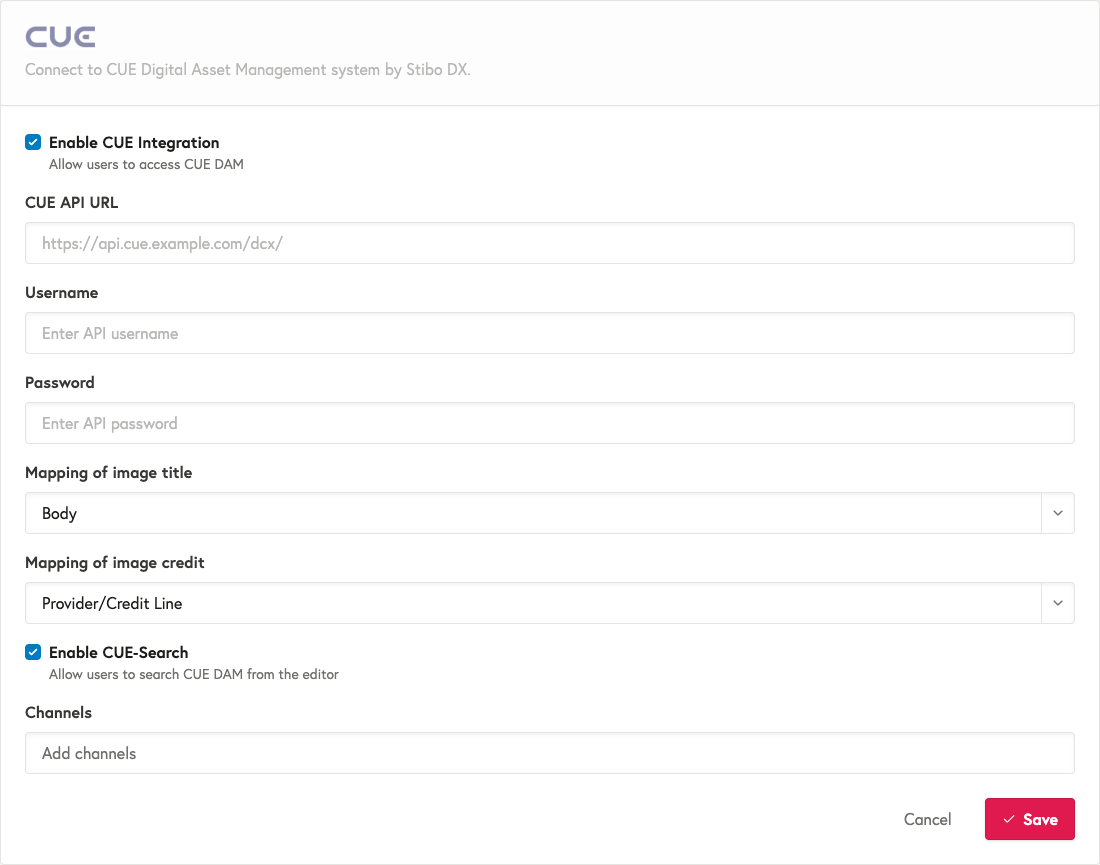
| Field | What to enter |
|---|---|
| Enable CUE Integration | Turns the integration on for all editors of your organization. |
| CUE API URL | The DC-X base URL including its path prefix and without /api, for example https://dam.example.cue.cloud/dcx/. A URL that contains /api is rejected. If you enter only the host, Tickaroo adds /dcx. |
| Username / Password | The API user from Step 1. |
| Test connection | Checks the URL, username and password currently in the form, before you save them (see below). |
| Mapping of image title | Which CUE field becomes the image title in Tickaroo (see below). If you don’t select anything, Body is used. |
| Mapping of image credit | Which CUE field becomes the image credit in Tickaroo (see below). If you don’t select anything, Provider/Credit Line is used. |
| Enable CUE-Search | Adds a CUE DAM button to the editor’s content area, so editors can search CUE without leaving the editor. |
| Channels | Shown when CUE search is enabled. Enter the ID of the channel to search (for example channel_images), then press Enter. Search only finds images in this channel. Enter one channel: searching several channels at once is not supported yet. |
The mapping fields offer these options:
| Option | CUE field |
|---|---|
| Title | Title |
| Provider/Credit Line | Provider |
| Body | body (HTML formatting is removed) |
| Headline | Headline |
| Source | Source |
| Empty | Nothing. The title or credit stays empty. |
Test the connection
Click Test connection after entering the URL, username and password. Tickaroo’s servers then sign in to your DC-X API with these values, the same way they do when an editor drops an image, and list the channels the API user can see. The test uses the values in the form, so you can try out new credentials before saving them.
| Result | What it means |
|---|---|
| “Connection works” with a list of channels | URL and credentials are correct, and Tickaroo’s servers can reach your DC-X API. The listed IDs are the values you can enter under Channels. |
| “Connection works, but the API user can’t see any channels” | URL and credentials are correct. CUE search needs read access to at least one channel; drag and drop can still work. |
| “The URL answers, but not like a CUE DC-X API” | Something answers at this URL, but it isn’t the DC-X API, for example a login page. Check the URL and its path prefix. |
| 400, 401, 403, 404 or 504 | The same causes as the error messages in the editor. |
The test doesn’t download an image. It can’t tell whether the image files are reachable without credentials, so still test drag and drop after saving.
Click Save.
Step 3: Test the integration
- Open a liveblog in the editor and start a new message.
- Open CUE web in another browser window, select one or more images and drag them onto the message.
- Check that the images appear with the expected title and credit, then publish the message and check the images in the liveblog.
If you enabled CUE search, also click the CUE DAM button in the content area, search for a term and add an image from the results.
Troubleshooting
Start with Test connection in the settings form (see Test the connection): it shows the same status codes as the editor messages below, without anyone having to drop an image.
| What you see | Likely cause | What to do |
|---|---|---|
| “Could not handle dropped object.” | The dropped item isn’t a CUE image (for example, it was dragged from somewhere other than CUE web), or the integration isn’t enabled yet. | Drag the image from CUE web. Check that Enable CUE Integration is on and saved. |
| “Could not fetch external media from CUE/DAM (400).” | Tickaroo couldn’t send the request at all. The CUE API URL is malformed, its hostname doesn’t resolve, the connection is refused, or the host resolves to a private address that Tickaroo doesn’t connect to. | Check the CUE API URL as described in Step 2, and that the host is reachable from the internet (see Network access). |
| “Could not fetch external media from CUE/DAM (401).” | The username or password is wrong, or the API user isn’t set up on this DC-X instance. This often happens after a DAM upgrade or migration. | Check the credentials and the CUE API URL. Ask your CUE administrator to set up the API user on the current instance, then run the document lookup. |
| “Could not fetch external media from CUE/DAM (403).” | The API user isn’t allowed to read this image. | Ask your CUE administrator to grant the API user read access to the images your editors use. |
| “Could not fetch external media from CUE/DAM (404).” | The image doesn’t exist on this DC-X instance, or the API user can’t see it. | Check that the CUE API URL points to the instance your editors work with, and that the user can read the image. |
| “Could not fetch external media from CUE/DAM (504).” | Tickaroo’s servers can’t reach your DC-X API in time. It’s usually blocked by a firewall or only reachable from your company network. | Allowlist Tickaroo as described in Network access. |
| The image appears in the message, but never finishes importing. No error message is shown. | The lookup worked, but Tickaroo can’t download the image file: it needs a login or isn’t reachable from Tickaroo’s servers. | Run the file download sample. The file must be downloadable without credentials, and from Tickaroo’s IP ranges. |
| CUE search finds nothing. | The channel ID is wrong, more than one channel is entered, or the API user can’t read the channel. | Run the channel listing and enter one channel ID exactly as listed. |
Debugging: check the API user directly
This section is for your CUE administrator or IT team. The requests below are the same ones Tickaroo sends. If they succeed, the API user has the right permissions. Run them before handing over the credentials, or when the troubleshooting table above doesn’t solve the problem.
Run them from a machine outside your company network. A request that only works inside your network will fail for Tickaroo too.
Replace these placeholders:
| Placeholder | Replace with |
|---|---|
https://dam.example.cue.cloud/dcx |
Your DC-X base URL, without a trailing slash |
API_USER / API_PASSWORD |
The API user’s username and password |
DOCUMENT_ID |
The ID of an image the API user should be able to read (it starts with doc) |
CHANNEL_ID |
The ID of a channel to search (it starts with channel_) |
Document lookup (used by drag and drop)
curl -G 'https://dam.example.cue.cloud/dcx/api/document/DOCUMENT_ID' \
  -u 'API_USER:API_PASSWORD' \
  -H 'Accept: application/json' \
  --data-urlencode 's[files]=current' \
  --data-urlencode 's[_referenced][dcx:file][s][properties][]=type' \
  --data-urlencode 's[_referenced][dcx:file][s][properties][]=_file_url' \
  --data-urlencode 's[fields][]=Headline' \
  --data-urlencode 's[fields][]=Provider' \
  --data-urlencode 's[fields][]=Creator' \
  --data-urlencode 's[fields][]=Title' \
  --data-urlencode 's[fields][]=Source' \
  --data-urlencode 's[fields][]=body'
Expected: HTTP status 200 and a JSON document. Check two things in it:
fieldscontains the image’s text fields, such asTitle,ProviderorHeadline. The title and credit mapping picks from these._referenced→dcx:filecontains an entry whosepropertieshave"type": "original"and a_file_url. Without it, Tickaroo can’t import the image.
A 401 means the username or password is wrong, or the user isn’t set up on this DC-X instance. A 403 or 404 means the user can’t see this document.
File download
Take the _file_url value from the previous response and download it without credentials:
curl -sSL -o image.jpg -w '%{http_code}\n' 'FILE_URL'
Expected: 200 (after any redirects), and image.jpg contains the image. Tickaroo downloads this URL without credentials. If it only works with a login, drag and drop will not work.
Channel listing (only for CUE search)
curl -G 'https://dam.example.cue.cloud/dcx/api/channel/' \
  -u 'API_USER:API_PASSWORD' \
  -H 'Accept: application/json' \
  --data-urlencode 'q[_mode]=my_channels'
Expected: HTTP status 200 and a list of the channels the API user can see. Each channel’s ID, which starts with channel_ (for example channel_images), is the value you enter under Channels in Step 2.
Search (only for CUE search)
curl -G 'https://dam.example.cue.cloud/dcx/api/document' \
  -u 'API_USER:API_PASSWORD' \
  -H 'Accept: application/json' \
  --data-urlencode 'q[channel][]=CHANNEL_ID' \
  --data-urlencode 'q[fulltext][]=football' \
  --data-urlencode 'q[_limit]=10' \
  --data-urlencode 's[files]=current' \
  --data-urlencode 's[_referenced][dcx:file][s][properties][]=type' \
  --data-urlencode 's[_referenced][dcx:file][s][properties][]=_file_url'
Expected: HTTP status 200 and a list of matching images in entries. Use a search term that exists in the channel.
Still stuck? Reach out to support@tickaroo.com and include the status code from the error message and the time you tried.